The IMatch to Site system automates the addition, update and deletion of images between IMatch and this website. I created it to reduce the time taken publishing photos for others to see.
The script created Obsidian pages which are then picked up by my Quartz build.
Warning
IMatch to Site replaces IMatch to Socials.
Features
- Uses metadata directly from the IMatch database and formats it (to my liking) for sharing with others.
- Processes photos from a dedicated “Socials” category within IMatch and adds any new photos to the matching social platform.
- Updates photos flagged for update.
- Deletes photos flagged for deletion.
- Creates album pages based photos being assigned to albums in IMatch
- Provides alt-text for accessibility. Created using AI policy, then reviewed by me.
- Can be run as an IMatch app for processing without leaving IMatch.
Sample image
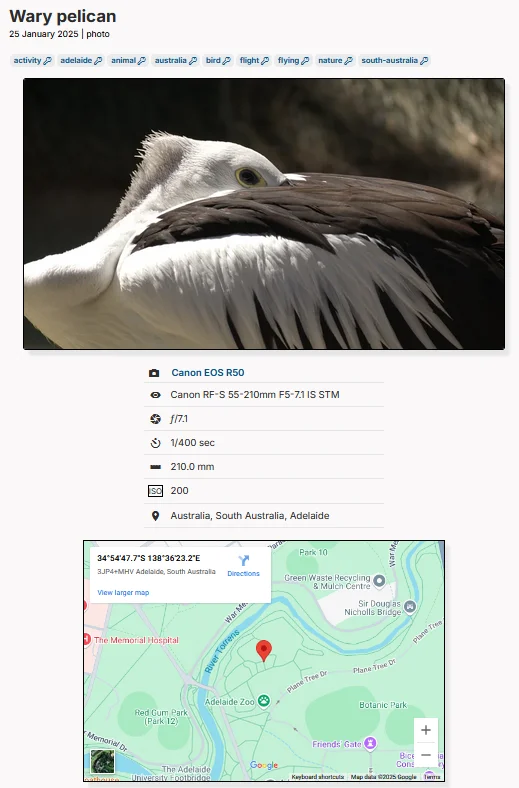
Sample photo page (original). Show title and date photo was taken, followed by keyword categories and the image itself. Below the image is camera and shooting information, plus a map showing where the photo was taken.
Platform actions
- Add - triggered when the IMatch attributes field for the photo is empty
- Create multiple WebP versions of the original image at different resolutions, overwriting any images that may already exist. Each is stuffed with basic information about the photo and copyright.
- Create a Markdown page with:
- Title and description (image alt-text added to description)
- Image metadata (date taken, camera information, map)
- Keywords
- Add to album(s)
- Add IMatch attributes to the image in IMatch.
- Update - triggered when in the “_metadata” or “_update” categories
- Same as “Add”, but with different treatment of images.
- Metadata - Add a version if missing, or if the original has been updated since the image was created.
- Update - Replace all images.
- Replace Markdown page.
- Update IMatch attributes
- Same as “Add”, but with different treatment of images.
- Delete - triggered when in the “_delete” category
- Delete image files a (automatic removal from albums and groups)
- Delete Markdown page
- Remove IMatch attributes. Running the script again will trigger an Add.
- Typical error conditions - mean add/update/delete won’t happen and added to appropriate category for the error
- Missing title or keywords
- Photo size > 25MB
Image resolutions
An image is created at multiple resolutions, consistent with Flickr’s image suffixes’. Justified Gallery, which does the thumbnail layout on gallery pages, will select an appropriate resolution for each image.
| Longest side (up to) | Suffix |
|---|---|
| 100 px | _t |
| 240 px | _m |
| 320 px | _n |
| 500 px | none |
| 640 px | _z |
| 800 px | _c |
Installation and Configuration
Set up Code Environment
For this system to run you need:
- Experience with code. I cannot emphasise this enough. I have taken steps to automate and bullet-proof this system as much as I can and as much as I need for my own purposes. It may not be right for you. The system modifies data and deletes data.
It is your responsibility to test how this system works for you and to support that testing with adequate backups for your needs.
- IMatch from https://www.photools.com (and this means Windows 10 or Windows 11)
- Python at least version 3.10
- pillow · PyPI for image manipulation
- ExifTool by Phil Harvey for metadata. Hint: You have this alongside your IMatch binaries
- Code downloaded from GitHub - quantumgardener/IMatch-to-Site: Create website pages for quantumgardener.info using image information in IMatch
Create IMatch Application Variables
To remove private information from the code, and to allow for quick changes, the system uses IMatch Application Variables for configuration.
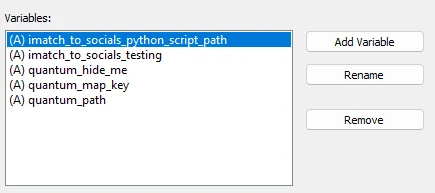
| Variable | Value |
|---|---|
| imatch_to_socials_python_script_path | Path to where you have installed the code |
| imatch_to_socials_testing | 1 = test, 0 = live |
| quantum_hide_me | A location category with the full path to my home address. If the image is in this location, a map is not displayed. (Needs to be expanded to handle multiple locations in the future.) |
| quantum_map_key | API key for the Google maps interface |
| quantum_path | Path to folder in your Obsidian vault that contains “/photos” and “/albums”. |
There is some configuration in
config.pybut this is more generic.You could move these variables to application variables if you wanted (or vice-versa).
Tying it together with media_id
Each image has a media id. For this I’m using the 6-digit global sequence from the filename.
For the Wary pelican photo, the original filename of 2025-01-25 10.56.27 [045576].dng gives a media_id of 045576.
All files, links and images are named with the media_id.
Create IMatch Attributes
IMatch Attributes are a way of attaching non-image metadata to an image within IMatch. They are stored only in the database and never saved to the image file. This system uses them to tag if a photo has been uploaded and provide some information about that.
It does not matter what the information stored is. All that matters is the existence, or not, of an attribute per platform with at least the id of the photo on the target platform.
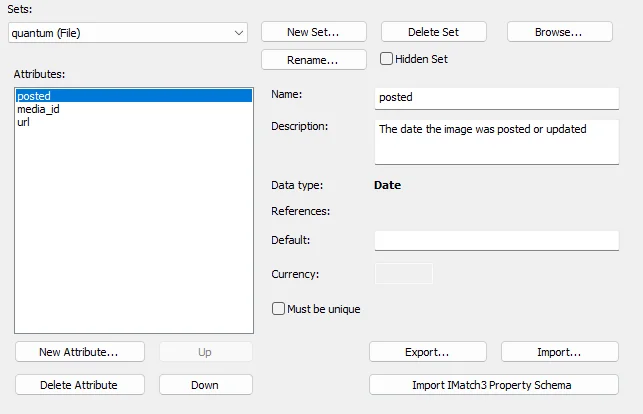
| Set | Name | Type | Must be Unique | Desc. |
|---|---|---|---|---|
| quantum | posted | Date | No | Date the image was uploaded |
| media_id | Text | Yes | Unique photo id within IMatch | |
| url | Hyperlink | Yes | Direct link to photo’s page |
Manually Deleting
If I delete the attribute record for an image, it will be uploaded on the next run. This could cause duplicates on your platform but is useful when testing.
Create IMatch Categories
The steps are simple. Create a version of an image, and add that image to a category the script recognises and press go.
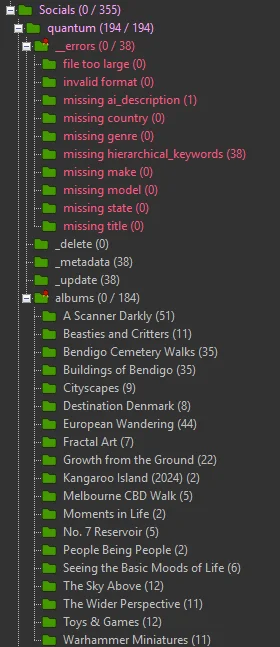
Socialsis defined inconfig.pyasROOT_CATEGORY- The second level categories are the platforms. This must match the name given in the
PlatformControllersubclasses’__init__function and be consistently used. __errorsis defined inconfig.pyand has a sub-category for each error type._deleteand_updateare self-explanatory. Images assigned to these categories are deleted or updated. Defined inconfig.py- An image in both will cause and error. Images are removed from these categories once the action is taken. Therefore:
- For update, an image should be in both the platform and update category
- For delete, an image should only be in the delete category.
- An image in both will cause and error. Images are removed from these categories once the action is taken. Therefore:
albumsare the albums the image belongs to
Tag images for upload
I have a master and a JPEG version for each image. The master holds the metadata and the JPEG version is the image that will be upload.
Tag the master as the image you want to update by adding it to the root of the quantum categoy created in the previous step.
The script will find the first JPEG version for conversions, with metadata from the master.
Versions and Metadata
My location hierarchy is quite deep and runs to personal information (see Mediabank). I don’t want flickr to be creating keywords for my home address, but if the information is in the hierarchical keywords field in the uploaded file, it will so location and events information is stored in IMatch categories, outside of the keywords tree. The master image has all the keywords and versions have none.
Configure IMatch App
Advanced topic
This is an advanced topic that relies you understanding what the instructions I give below mean. It’s beyond the scope of this document to explain all the details.
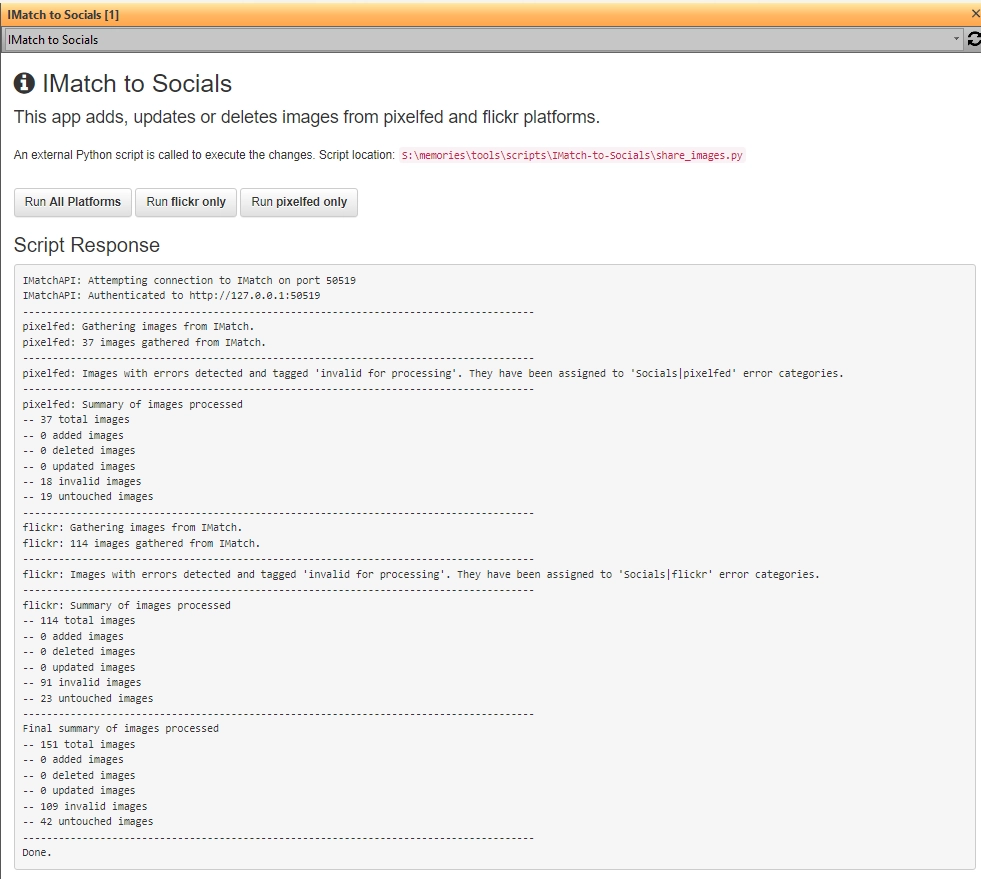
The code can be run from the command line or from with IMatch using an IMatch app. Here’s how I set up mine.
- Close IMatch
- Place the GitHub code in a location of your choice. The
IMatch appfolder is the one we are concerned with. - Create a symlink from the
C:\ProgramData\photools.com\imatch6\webroot\userfolder to the location of yourIMatch Appfolder. - Start IMatch. You should see the application registered.
- Point the
imatch_to_socials_python_script_pathapplication variable to the location whereshare_images.pyis located. - 🤞
Understanding the Code
The code is quite volatile as I change it to meet my needs. Most of the information required can be found in IMatch to Socials > Understanding the Code with specific changes listed here.
QuantumImage- defines an imageQuantumController- controls how images are manipulated and processedAlbum- new class representing an album of photos- Multiple
quantum-*.mdfiles - templating the output for Obsidian data.json- structure of albums, modified outside of the codebase