
Mediabank is the name given to our family Photography and video archive. It collects all photo and video digital media assets (hereafter media) into a single location managed by IMatch.
Current size
Files Size 39,908 592GB I estimate 30% of the files can be deleted. Everything was kept in the past meaning there are many runs of photos out of focus, of the same thing. A brutal cleansing is required. I have been checking the metadata on all images month-by-month and cleaning up then.
Storage
| Storage Folder1 | Purpose |
|---|---|
C:\Users\Public\Public Documents\IMatch | Location of the Mediabank.imd5 file. |
S:\memories\assets | Final storage location for media in YYYY\mm -MMMM\ folders. |
S:\memories\database\Pack & Go | Periodic backups of the Mediabank environment using IMatch Pack & Go.2 |
S:\memories\home videos | Videos from when we had a video camera. Separated from the other assets to allow easy indexing by Plex. |
S:\memories\import | Location of media prior to culling and addition of metadata |
S:\memories\tools | Additional reference information e.g., geneaology, scripts |
S:\ is a motherboard mounted, high-speed 1TB M.2 SSD drive.
High level cataloguing process
Media are brought into the system, catalogued by having metadata added, and filed. Some are shared publicly which involves additional metadata requirements.
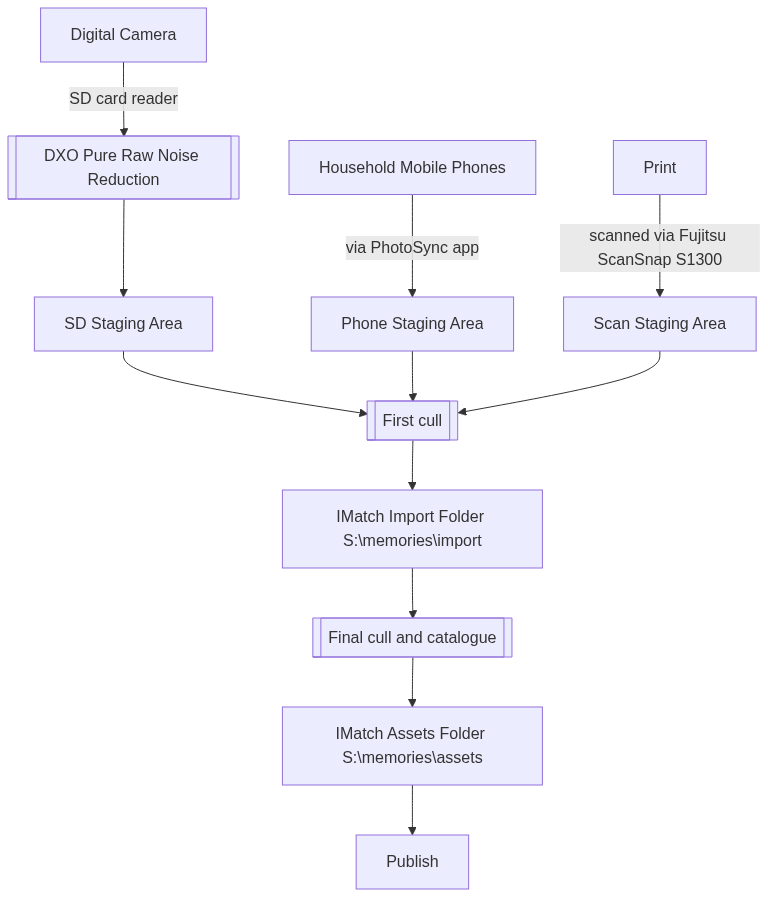
Ingestion to Import Folder
The two main folders in Mediabank are the Import and the Asset Folders. Media is loaded into the Import folder for processing per this workflow, and once done, moved to the Asset folder as the final place of storage. Media in the Asset folder can be considered to have the best effort metadata available.
Digital cameras
Photos and video from DSLR or mirrorless cameras are copied to the import folder using a card reader (preferred), local wi-fi connection between camera and computer, or USB cable. I am not ashamed to say I use DXO Pure Raw at this stage to remove digital noise from hi-res images.
Mobile phones
With 3 iPhones3 in the house, it has been difficult to reliably get photos from the phone to the PC in a way that makes managing them once imported easy. Plugging each into a USB port and copying files is unworkable because I need to keep track of the last number photo copied from each phone. The file names do not include the date and time the photo was taken.
I have tried Dropbox, iCloud and OneDrive with limited success.4 The current working solution is PhotoSync. It has the benefit of working fully locally and transfers newly created photos directly into S:\memories\import\[phone id]\ each morning at 2am.
iCloud for Windows is so unreliable in our household I won't ever go near it again.
It would frequently fail to sync files, and at other times would chew up 40% of the CPU doing nothing at all. That type of unreliability is unacceptable when dealing with family memories.
Sometimes, when importing photo from iPhones they end up in the wrong day (more on that later) but usually within the same month so I can easily see the date corrections I need to make. The two main culprits are .mov files which reference UTC instead of local time, and photos sent from someone else’s phone. They have the date received, not the date originally taken.
Print scans
Prints are scanned at 600dpi through a Fujitsu ScanSnap S1300 and saved directly into the import folder in a sub-folder based on the name of the physical album they came from. Automated dates cannot be set to anything other than the date of scanning. I do my best to get accurate dates during the Date/Time step. Once scanned and backed up, they are binned.
File management
Culling
Approximately half to two-thirds of images are culled immediately after import and before I take any other actions. I select the best and delete the rest. My criteria are story, focus, exposure, etc. but that doesn’t mean I’ll necessarily delete an image if it means keeping it for a notable reason such as it being the only record of an event.
Media filename convention
Media are filed in S:\memories\assets following a strict naming convention by date, time and a global unique file number that increases by 1 each use. The use of a global identifier means media with the same date and time remain unique.
- yyyy-mm-dd
	- mm MMMM
		- yyyy-mm-dd hh:MM:ss [nnnnn0].ext
		- yyyy-mm-dd hh:MM:ss [nnnnn1].ext

As soon as possible after the date and time of a file are confirmed correct during ingestion, the media is renamed.
The process for handling uncertain dates is described in My photo dating strategy for uncertain dates.
Bulk file renaming and movement
At multiple points in the workflow I need to rename or move files so I use IMatch’s Renamer for consistency and speed. It uses the metadata available in the database and does not require a new import in the way an external batch renamer would.
Day-by-day, then month-by-month
When first imported, media are filed by date. I find it easier to process with the focus on a single day, especially for big events, than across the whole month. Once catalogued, images are filed by month.
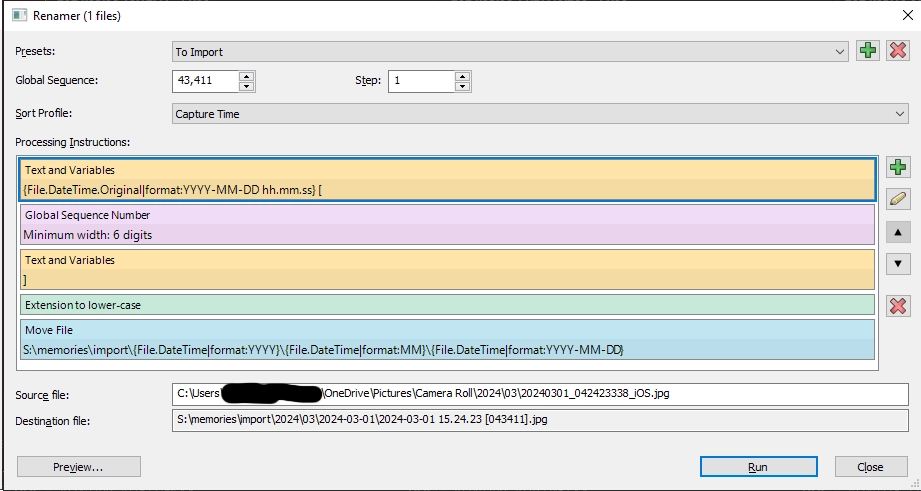
The "To Import" renamer definition
The first three lines create a filename based on the date and time the media was created. At the end between
[and]is a global six-digit unique number. Here the next is 43,411. This ensures if a file has the same date and time, the filename is unique.The green line converts the filename extension to lower-case for consistency.
Finally, the blue Move File line takes the previously renamed file and moves it to the import folder within a
yyyy\mm\yyyy-mm-dd\structure.In this example
20240301_042423338_iOS.jpgbecomes2024-03-01 15.24.23 [043411],jpg.
Backup is important
Refer to My backup strategy for how digital assets and the database are backed up.
Cataloguing
Removing noise from cataloguing
IMatch has many ways to categorise and filter data. I make use of them to help me focus on my workflow. Let’s say that after a Culling, I still have over 100 photos to process on a day. I can’t be looking at each to check the items listed above. Instead I’ll do a pass for each (check date/time across all, check location across all). Anything with correct information is filtered out as I go, allowing me to see what I’ve check and what remains.
The full process is detailed in Filtering the Working Folder: A smarter start to image cataloguing.
I prefer to use concrete Digital asset metadata fields to track the important information about an image or video. I find it more useful to search on than captions or descriptions which are less structured.
To be fully catalogued, I aim to have every digital asset with:
- Date/Time (When)
- GPS coordinates (a more accurate Where)
- Location (a less accurate, but user friendly, Where)
- People (Who)
- Events (What)
- General Keywording (What for additional search and publishing)
If a value cannot be determined, the closest is used. In some cases, “Unknown” is a valid choice.
Date/Time
Every image has the date and time set.
- Photo date and time from a camera
- Usually reliable
- May need adjustment if taken in a different time zone
- Usually need setting if photos come from someone else (sharing photos seems to strip the original date and time out)
- Movie files
- From iPhones need the correct time zone set and a subsequent file rename. This is a weird quirk that iPhone photos have the correct timezone, yet movie files have their time referenced to UTC. IMatch makes it easy to adjust the time and add a timezone.
- Scanned files
- Dates and times are entered by hand as a best effort guess.
Ingestion files images by day within a month. This makes it easier to identify and correct date time errors across different media sources. A .mov file that has not been corrected will normally be the day before (one advantage of being +10/+11 hours ahead of UTC).
When I have to set a date and I don’t know the exact details I follow My photo dating strategy for uncertain dates.
Metadata for Dates
Dates are stored in the
Date CreatedandDateTimeOriginalfields.
GPS coordinates
If the device doesn’t add GPS directly, it is added via IMatch’s in-built map function. Photos that are all in the same location e.g., home, all have the same GPS address and make use of IMatch’s various location features.
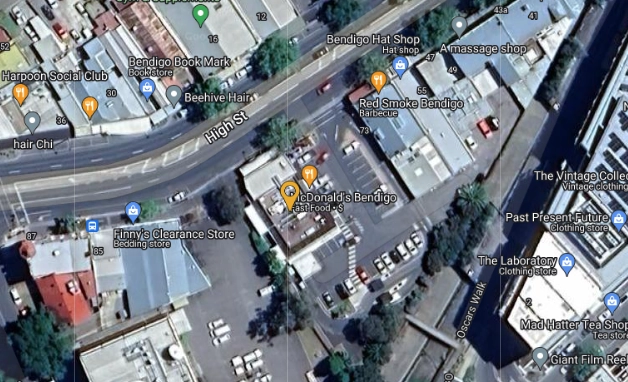
When it’s easy to separate pins to where a photo was taken I set separate pins. For searched results, I will use the pin provided.
Common locations, such as our house, family member’s houses, or other locations we visit regularly are created as a location with a n-metre radius. Media within that radius are all set to the same location. It’s enough to know a photo has been taken on our house property. Nobody needs to know which room.
Not all images will have identifiable GPS, just as not all will have an identifiable location.
Location
Locations are stored using the IPTC-Ext Locations schema. I use location shown over location created to help me focus on the subject of the image as the more important categorisation tool.
| Shown Field | Value |
|---|---|
Country Code | The three-letter ISO 3166 code. |
Country | The name of the country.5 |
State/Provice | State, province or sub-region of a country. |
City | If the image shows something in a city or town, the city or town. If out in the nearest place of settlement will be used. |
Location | A named, recognisable location, if one exists and would be known to others. |
I previously put too much effort into this; to the point where even a single photo would be defined down to the street. My thinking was very hierarchical and I was preparing for the ability to select a street and have all photos taken there show. The built-in GPS map serves the same purpose. Now, I’m naming landmarks, art galleries, restaurants, etc., but nothing in between that and the city. A house where I went to a party once only gets as far as City. Should I need something more precise, then GPS will do. This subtle change has massively improved my speed of cataloging.
The IMatch Auto-fill feature is used extensively for the local locations around town that I visit frequently. Otherwise I make do with an entry down to City and fill the Location manually. I may add an auto-fill entry if I feel it’s worth the 3 seconds to do so 😆.
The Places I’ve lived, receive the Location, “Home, suburb”. Family homes are “Home, Family home, suburb”. The comma serves as a hierarchical split marker for my auto generated locations categories.
I make heavy use of the data-driven category feature of IMatch to create a tree of Country/State/City/Location from the photo metadata.
People
The decision to tag people is difficult to navigate. Do you tag only those people close to you, or do you tag everyone you know. The latter makes for a lot of work, particularly in those media when I personally don’t know everyone. That happens a lot with my daughter’s friends.
My default has been to tag everyone, but I recognise there is limited value in that and may change.
People are identified using the built-in “People” function. Metadata about a person is stored and managed by IMatch. The connection from asset to People is via an XMP annotation either through face matching, or direct application (without a matched face). IMatch also stores names in the XMP:Person in Image field.
- Each person record made up of
- Name Surname
- Sort order (Surname, Name)
- Date of birth/death
- Tag gender (male or female)
- Add categories
- Gender
- Nationality
- Relationships
Pets use the same system.
- Each pet record made up of
- Name
- Date of birth/death
- Gender
- Group = Pet
- Add tags e.g.,
WHAT|nature|animal|mammal|domestic dogorWHAT|nature|animal|bird|cockatiel - Add category e.g.,
Pets|DogorPets|Bird
Relationships via category means information is stored in the database but not in the images themselves. For my daughters, the grandparents category brings together images of all their four grandparents.
A top-level Who category is dynamically calculated directly off the XMP:Person in Image field.
Events
Event information is stored in the XMP:iptcExt\Event field. This is a manually entered field with consistent naming standards. There is no cost to manual entry because I catalogue a month at a time.
- Birthday:
yyyy-mm - Alan Smithee's birthday - Christmas:
yyyy - Christmas - Easter:
yyyy-mm - Easter - Graduation:
yyyy-mm - Mary Contrary's high school graduation - Travel:
yyyy-mm - destination
where,
yyyy-mmis the year and month of the first photo for the event.- An event starting in late November 2025 and rolling into December 2025 would be named
yyyy-mm. - My photo dating strategy for uncertain dates applies here. There are some cases with scanned prints where I know the year but am uncertain about the month. Such examples would be
1982-??
- An event starting in late November 2025 and rolling into December 2025 would be named
yyyyis for Christmas only at this stage. In my house, Christmas activities can start in November and I think it makes little sense to haveyyyy-11in some years andyyyy-12in others. Easter however, changes month so it’s alwaysyyyy-mm. By chance, IMatch ordersyyyyafteryyyy-mm, so Christmas ends up at the end of the list which is nice.
With this standard naming, I’m able to use IMatch data-driven categories to organise events into one or more categories. I have:
- Birthdays by person and then by year
- Easter by year
- Travel by year
- Christmas by year
Until now I’ve shied away from using IMatch’s built-in Events feature. With this structure, I can catalogue a month’s photos, wait for the data-driven categories to form, then highlight them all for the month, right-click and create Event panel categories for each selected category. It does this in a way that any future additions will appear automatically.
Prior to using the XMP:iptcExt\Event field each event needed me to firstly navigate to the categories panel, create a category, return to the photos, and remember to add them to the category. The change has massively sped up the process of assigning events to photos. An added benefit is events now save to metadata creating a degree of future-proofing outside of IMatch.
General Keywording
I only apply obvious keywords for situations where I think I, or my family, may want to look for photos containing a sunset, cake, or kangaroo. and the information is not in the Description field.6
I am not yet using AI Keywording in IMatch. My trials have shown it creates too much noise for my liking.
The Final Flag
Once I’m happy with everything and have added all the metadata I can, I add a label called Final. This helps with filtering out images I still have to process.
Still to come
- Versioning and buddy strategy
Footnotes
-
And previously 1 Samsung as well. ↩
-
I used Dropbox to automatically upload photos in the background which worked until Apple removed the ability for an application to constantly run in the background. And I would sometimes run into issues filling a family member’s Dropbox capacity. OneDrive still has the same background upload timeout, but there are no practical storage limits to worry about so no need to change back. However, Apple does disable the app from running the background after a while so periodically I had to remind everyone to go into OneDrive on their phone which reignites the transfer for a few days and catches everything up. I also found it wasn’t transferring all files. At the next reminder to upload, other earlier files would appear. ↩
-
In my system, England, Scotland and Wales are listed as individual countries, all with the GBR country code. ↩
-
Siebert (2024), Photo keywording concepts: stuff to consider before you keyword, https://www.carlseibert.com/keywording-considerations-start/ ↩