My Mediabank currently has many thousands of photos and home videos, each with as much Digital asset metadata as I can throw at it to be confident I have captured pertinent historical information such as when, where, who and what. It’s part of the responsibility I have taken on for managing my family’s history.
I can only eat this elephant one mouthful at a time and looking at several thousand photos at once induces complete overwhelm. Even if broken up into day-by-day I might find I have a couple of hundred images to process. How can I tell which have the correct date, valid GPS information, a location entered, let alone which have unidentified people or event information? There is too much noise.
I use a two-pronged strategy of processing each metadata category in turn rather than image-by-image, and automatically filtering out those images which meet the requirements of the current category.
The set of images I’m considering at any point in time is my “working folder.”
Multiple passes
Let’s assume I have 50 photos in a working folder ready for cataloguing. I assume every photo has a correct date and time. That still leaves me needing to check for GPS, Location, People and Event (see Mediabank for more detail on how I use each of these metadata fields).
The most inefficient way is to treat each photo individually and check it for all metadata fields. Click, check each item is present, set if missing, move to next. It’s a huge cognitive overload to shift between GPS -> Location -> People -> Event in turn 50 times.
A much smarter way is to check:
The number of actions remains, but the process will be faster as my attention is only on one field or icon within IMatch.
It’s not a great strategy for setting information. Even when scanning for one item I have to keep track of where I am in the list so that I can pick up with the next. Working one metadata field at a time is faster, and filtering makes it faster again.
Automated filtering
I don’t need to check which images have GPS. I do need to check which images do not have GPS. Automatic filtering employs the principle of “Management by exception”. I gain magnitudes of efficiency when I use IMatch to focus attention where it needs to be—those images missing GPS and those images only. When I’m looking for People my focus is on those images missing people only.
If prior to filtering 45/50 images have GPS, then the effort falls to:
That’s a lot quicker.
WARNING
“But what if the pre-existing GPS locations are incorrect?”
At the initial “make sure everything has GPS stage” it doesn’t matter. That’s not the focus. Once all images have GPS, I can select them all and use a map feature to show the location of all images. Any which are off where they should be will show. Recently, this helped me identify a number of images where the latitude was positive instead of negative incorrectly placing images in the wrong hemisphere.
IMatch provides two ways to filter and the detail below will help explain further.
Final is a special flag
Once I’ve done adding Digital asset metadata to a photo or video, I set the Final label. The label designates I’ve added all the metadata I can. There is no point showing me this image again as I process my workflow. All my filters, under both approaches, also check for the existence of this flag.
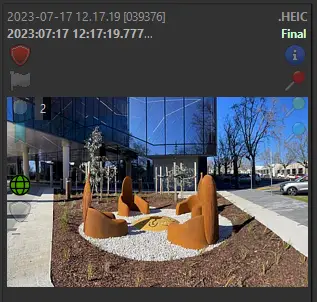
Thumbnail showing Final label (top-right) marking “Metadata added”
Filtering using the Filter panel
The IMatch Filter Panel is a powerful way to filter the contents of the active file window. It’s fast and can filter on multiple criteria at once.
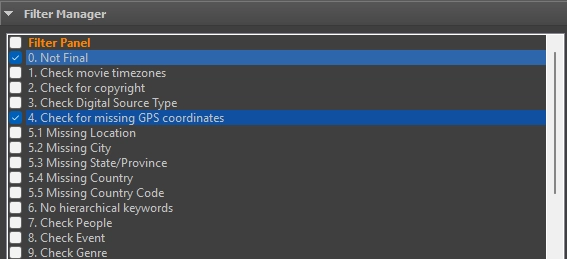
Filter panel showing numbered workflow steps, currently filtering for media that does not have GPS coordinates and is not final because Final is a special flag.
TIP
All my workflow filters have the filter itself, plus the
File Propertiesfilter set toHide buddy filesandHide versions. There is no benefit setting metadata on images that will inherit it from the master file. This approach keeps things cleaner.
Not final
Only show images that do not have the Final flag set. Final is the first label.
- Rating, Label and Collections panel
- Check
Invert - Select first label
- Check
Check for incorrect movie time zones
Quickly filter to show only movie files so that I can manually check time zones are set correctly.
- File format panel
- Check
Video/Audio File Formats
- Check
Check for missing copyright
Filter to files with copyright set. Only checking the most critical of several fields.
- Metadata Search panel
- Not Regular Expression =
+. - Selected Tags
- Copyright
- Not Regular Expression =
Check for missing digital source type
Filter to make sure I tag the original source type of an image.
- Categories panel
- Combine included files with AND
- Category
Image Characteristics\Digital Source Typeset to “double minus” (exclude, recursive including child categories)
Check for missing GPS coordinates
Show all images without GPS coordinates.
- Value Filter panel
- Files with value
- Invert the result
- Field
GPS Position
Check for missing locations
Filters in the Filter panel are combined. I can’t look for Country = Australia or State/Province = Victoria. I can only filter on Country = Australia and State/Province = Victoria. This makes it difficult to check for missing values across the ITPC location set. Instead, I have a graduated approach. I first check for missing Location. Once I’ve set my locations, I check for missing City. This should be a shorter list because most locations are in cities. After that I check for missing State/Province. Again, a shorter list because I know of not city that’s not in a state or province somewhere. And so on, for Country and Country Code.
- Value Filter panel
- Files with value
- Invert the result
- Field
Location (Shown)
The additional location filters are the same except the field changes to City (Shown), State/Province (Shown), Country (Shown) and Country Code (Shown).
Check for missing hierarchical keywords
All images that I publish online must have hierarchical keywords.
- Value Filter panel
- Files with value
- Invert the result
- Field
Hierarchical Keywords
Check for missing people
Filter for images where I have not face matched, or linked, people.
- People panel
- Check
Files without faces
- Check
Check for missing event
Filter to make sure images are categorised with an Event when they should be. I do not use the built-in Event system. Doesn’t meet my particular needs.
- Categories panel
- Combine included files with AND
- Category
Eventset to “double minus” (exclude, recursive including child categories)
Check for missing genre
All images uploaded must have a genre set
- Categories panel
- Combine included files with AND
- Category
Image Characteristics\Genreset to “double minus” (exclude, recursive including child categories)
Filtering using a dedicated workflow folder category
NOTE
I used this method successfully for many years. Since I began the built-in Filter panel has improved significantly and can now do enough of what I had below much faster.
I relied extensively on IMatch categories with formulas to streamline the process of filtering. Each category monitors for missing metadata relative to the current working folder. As I add metadata, images are removed from the categories until all necessary metadata is added. This approach eases the workload, as I don’t have to keep track of what I’ve completed and what I haven’t.
Understanding the idea of the Working folder is necessary to understanding this method. The Working folder category points to the current file system folder I am working on. It is currently set to "@RFolder[file://S:/memories/import/2024/06/]". The RFolder means the current folder and any sub-folders (R = recursive).
In the example below, you can see there are 137 photos and I have not yet pulled out duplicates, bad photos, screenshots etc.
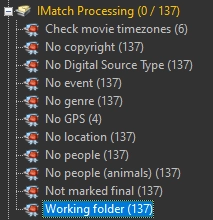
Every other category references this category plus the metadata I’m looking to add. Most also reference NOT "@Collection[Label|Final]" on the understanding that if I’ve flagged it FINAL then I’m done.
Check movie timezones formula
Select all images in the working folder with a .mov or .mp4 file extension so that I can manually add the correct time zone to the date and time fields. These files often come in with the wrong timezone from iPhones.
"IMatch Processing|Working folder" AND ("@FileRegExp[\.mov$]" OR "@FileRegExp[\.mp4$]") NOT "@Collection[Label|Final]"
No copyright formula
Select all images where Copyright has not yet been set. I have a metadata template to detect the year of the image and set the copyright value.
("IMatch Processing|Working folder" AND "@MetadataTag[rights,novalue]") NOT "@Collection[Label|Final]"
No Digital Source Type formula
Select all images where the Digital Source Type metadata field has not been set. I set this manually upon import now, so there will be no new images missing this value.
("@MetadataTag[XMP::iptcExt\DigitalSourceType\DigitalSourceType\0,novalue]" AND "IMatch Processing|Working folder") NOT "@Collection[Label|Final]"
No event formula
Select all images without an Event keyword set. Not all images receive and event.
("IMatch Processing|Working folder" NOT "Event") NOT "@Collection[Label|Final]"
No genre formula
Select all images in the working folder without a genre. Primarily of use for IMatch to Socials which requires genre. AI changes may help me here in the future.
("IMatch Processing|Working folder" AND "IMatch Workflow Categories|No Genre") NOT "@Collection[Label|Final]"
The No Genre category lists all images without a genre and has the formula "@All" NOT "Image Characteristics|Genre".1
No GPS formula
Select all images without a GPS location. One of the few categories that begins with only a few images in it.
("IMatch Processing|Working folder" AND "IMatch Workflow Categories|No Genre") NOT "@Collection[Label|Final]"
The No GPS Data category lists all images without a genre and has the formula "@MetadataTag[gpslatitude,novalue]",1 checking for missing latitude only (assuming if that is missing, longitude is missing as well)
No location formula
Select all images in the working folder without a location. Assumes a location category.
("IMatch Processing|Working folder" AND "IMatch Workflow Categories|No Location") NOT "@Collection[Label|Final]"
The No Location category lists all images without a genre and has the formula "@All" NOT "Location".1
No person formula
Select all images in the working folder without a person. As soon as one person is added, the image falls out of this category. (Sorry for the screenshot, couldn’t get it to display properly).

Not marked final formula
Select all images in the working folder not yet marked final.
"IMatch Processing|Working folder" NOT "@Collection[Label|Final]"
Comparison of filtering methods
There are subtle differences between the two filtering methods. The filter function is applied to the active view, be that a folder, category, collection. In comparison the working folder category approach is locked to the working folder so if I shift views, I’ll see everything in that view unfiltered.
Filters are boolean ANDs. You can’t have filter A OR filter B. An image will only show if in filter A AND filter B. Knowing how IMatch continually improves, this may change in the future but I’m not counting on it. There will be compromises if the developer goes down that path.
Ultimately I may return to the category approach for these reasons.
Both methods suffer when there are multiple possible values to set. People and hierarchical keywords are the most common. As soon as I set a person, or a keyword, the image disappears from the list. This needs a little care but isn’t problematic.