If you want the best experience you can have at home when watching movies and have a fear of missing out, then this article is for you. It is also for you if you just wish to better understand the terminology surrounding today’s 4K televisions in order to improve your buying decisions.
Where it all started
I remember I was in Wollongong on holiday visiting a high-school friend when he took me into a local hi-fi store1 to see a demo of the new DVD technology. From that moment I was hooked and ever since have wanted to have the best quality for my home video experience as possible — for the right amount of spend of me. After all, you can spend $000’s on high-end equipment for a marginal return. Nothing I’ll cover here requires more than a modest spend for good equipment.
It all starts with resolution
Let’s unpack 4K UHD TV.
The “4K” is shorthand for the dimensions of the screen in pixels. A 4K screen will be 3840 pixels wide, by 2610 pixels/lines high. This is also known as 2160p and described as UHD/Ultra High Definition. The number of pixels in a 4K screen is 4 times the number in the previous generation’s 1920x1080p Full-HD screens which was again larger than High Definition’s 1024x720p and DVD before that at 480p. You can see the differences in the figure below.
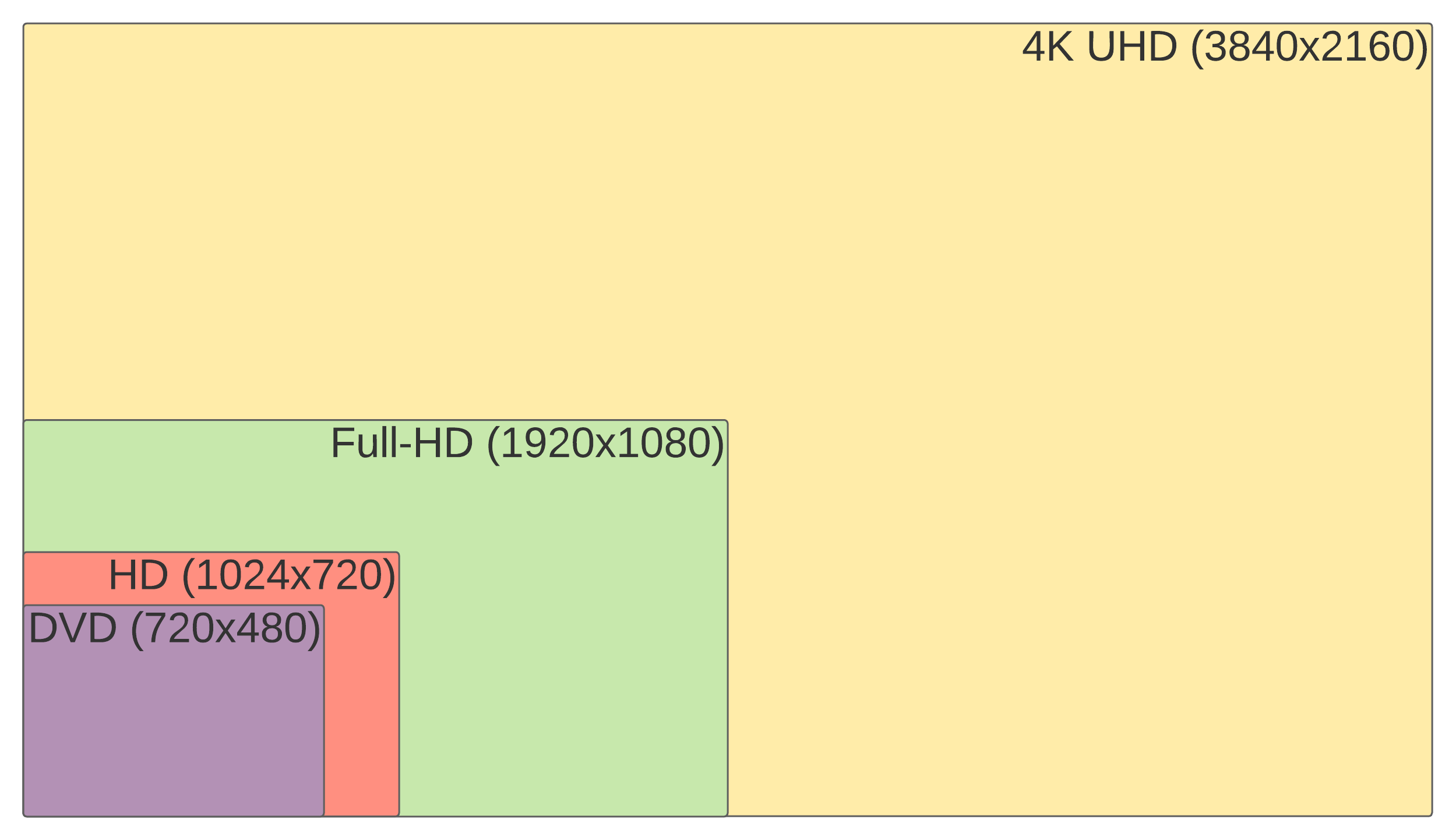
Figure 1. Comparison of screen resolutions in pixels from DVD to UHD
| Standard | Commonly referred to as | Width x Height | Dimension increase over previous standard |
|---|---|---|---|
| 480p | DVD | 720x480 | --- |
| 720p | HD | 1024x720 | x1.5 |
| 1080p | Full-HD/Blu-ray | 1920x1080 | x1.5 |
| 2160p | UHD | 3840x2160 | x2.0 |
Table 1. DVD to UHD details
Blu-ray is no longer suitable as a shorthand for Full-HD because it actually refers to a storage format, not a display format. Most “Blu-ray” movies you are used to are either BD-25 or BD-50 disks, with 25GB or 50GB capacity. UHD movies are also distributed on Blu-ray at up to BD-100 capacity and are referred to as 4K UHD Blu-ray.
These numbers are interesting. You could in theory show four Full-HD movies on a 4K screen at their full resolution (i.e., showing every pixel in the source). You may be asking, “What happens if I show a Full-HD picture on a 4K screen?”. Well, it certainly doesn’t fit just one quarter of the screen. Your TV or the source equipment will “upscale” the image from the smaller size to the larger size by generating extra pixels to create the number required and doing some fancy things to smooth out lines.
In theory more pixels means a sharper picture but this depends heavily on the a number of factors including the quality of the source material, any digital enhancement that has been applied, and your viewing distance from the screen which for a 1080p screen is optimal at 4 times the screen height.2
All this is nice, but the biggest development of 4K TV is the inclusion of HDR or High-Dynamic Range.
I can see all the colours
High-Dynamic Range and 4K go hand in hand. HDR content uses 10 bits to describe the amount of red, green and blue merged to form the colour of each pixel. That means each colour can be described more accurately and so we can see more colours on the screen with a greater range between dark and bright colours. This is the HDR10 standard.
For more detail check out What Is 10-Bit (And 12-Bit) Color? which describes the concept in further depth and has some good examples to look at.
In my experience HDR means colours look much more natural and there is a greater contrast between light and dark areas leading to better detail in shadow areas.
For me, and many others, it’s HDR that is the game-changer, not the extra resolution of 4K.
For most, the TV will be the limiting factor in all this. My TV can only display up to 1000 nits whereas the HDR10 standard allows for up to 4000. My iPhone 12 will display up to 1200 nits.
Notwithstanding the remainder of this article will discuss the Dolby Vision and HDR10+ extensions to HDR so that when you are buying equipment you will at least understand what’s required to avoid upgrading everything later on.
Introducing Dolby Vision (and HDR10+)
If HDR10 wasn’t enough, Dolby Vision and HDR10+3 introduce an extra 2 bits of information for colours which means more colours!!!!
While every TV will support HDR10, not all will support Dolby Vision or HDR10+.
And right up front I’m going to suggest HDR10+ is dead in the water. To understand why let me take you back to the early 2000’s and the [Blu-ray v HD DVD war](https://www.mediacollege.com/video/format/compare/bluray-hddvd.html. I predicted early that Blu-ray would win the battle of near-identical standards simply because the name sounded much cooler. The same with Dolby Vision v HDR10+.
There are a couple of other reasons why I suggest Dolby Vision will win the race. Netflix and Apple all offer Dolby Vision content but not HDR10+ and most 4K UHD movies that offer HDR10+ also offer Dolby Vision. My Apple iPhone 12 even records video in Dolby Vision if I want it to. These are very similar to the reasons given for Blu-ray winning from the article above.
Dolby Vision doesn’t also mean more colours. It enables content producers to modify the dynamic range of a scene. This is the range between light and dark. HDR does this but at the level of the whole movie, not scene by scene.
I’m sold, what do I need to buy?
Before you go shopping, make sure you understand this next sentence. If not, you won’t get a Dolby Vision image on your TV.
Every part of the chain, from what you are watching to what you are watching it on, must support Dolby Vision
If even one piece is not Dolby Vision compatible or if the settings are not right, all you will get is HDR (which is still bloody good). Each step below it is assumed the previous step “passes”.
- Let’s start with the TV. It must support Dolby Vision. If your 4K does not support Dolby Vision then you won’t be able to view it. Full stop. Game over. That’s all she wrote.
- Enable the Dolby Vision setting on your TV if there is one to enable. At this point, Smart TV apps like Netflix should pick up that you have Dolby Vision and display an icon for the shows that support it4
- Plug your streaming/player device into the TV
- These also need to support Dolby Vision the Apple TV and Sony UBP-X700 4K Bluray player do. You may need to enable Dolby Vision settings on them as well and I have the Apple TV instructions documented.
- Use a high-speed HDMI cable or better
- Plug it into one of the HDMI ports that your TV has marked for UHD sources.
- If you are connecting items via an amplifier, you also need to make sure it can handle Dolby Vision (starting to see the pattern)
- Finally, make sure the source material you are playing is encoded in Dolby Vision as not everything is. If it’s not, there is nothing you can do about that.
Some examples
Here are some examples of the flow of Dolby Vision in my house.
The Fellowship of the Ring 4K UHD Blu-ray with Dolby Vision
graph TB;
a[The Fellowship of the Ring 4K UHD disk] --> b[[Sony UBP-X700 4K Bluray player]]
b --> c[[Yamaha RX-V4A]]
c --> d[[Sony Bravia KD-55X9000F TV]]
Note: the Sony UBP-X700 4K Bluray player doesn’t detect Dolby Vision. It has to be switched on/off per disk. So I use it for Dolby Vision movies and the PlayStation 5 for all others5 The difference in this movie is outstanding. Despite having watched it multiple times, I am noticing fine detail that I have never seen before.
Interstellar 4K UHD Blu-ray without Dolby Vision
graph TB;
a[Interstellar 4K UHD disk] --> b[[PlayStation 5]]
b --> c[[Yamaha RX-V4A]]
c --> d[[Sony Bravia KD-55X9000F TV]]
Interstellar on Apple TV Dolby Vision
graph TB;
a[Apple TV 4K] --> c[[Yamaha RX-V4A]]
c --> d[[Sony Bravia KD-55X9000F TV]]
Interstellar is one of many where the 4K UHD disk is not in Dolby Vision, but the video streamed by my Apple TV is. Check out the list of Dolby Vision movies on Apple TV
Final thoughts on content selection
As you will see from the Interstellar example above, the Apple TV version supports Dolby Vision but the disk version does not. What are the implications of this?
- You have to shop around for where you want to buy content from. Whilst Interstellar on the Apple TV has Dolby Vision, it will be by necessity streamed at a lower bitrate than the movie on disk. It also misses out on the IMAX full screen scenes. Sometimes it makes sense. I have just bought Wonder Woman (2017) on Apple TV even though the disk has Dolby Vision becuase it was only AUD$7.99. The same with 2001: A Space Odyssey
- If you are watching a ripped Dolby Vision movie via Plex or any other similar content management system you will are unlikely to get the Dolby Vision signal even if it is in the file.6 Infuse may work. If the video is purple/green you need to find one with a HDR10 fallback.
- Make sure you take advantage of JustWatch to find which streaming services have the movie/TV show you want so that you don’t end up buying something on disk you can stream.
Footnotes
-
They weren’t audio-visual stores back then. ↩
-
“Display Size” on Wikipedia - For full HDTV resolution, this one minute of arc implies that the TV watcher should sit 4 times the height of the screen away. At this distance the individual pixels can not be resolved while simultaneously maximising the viewing area. So the ideal set size can be determined from the chart below by measuring the distance from where the watcher would sit to the screen in centimeters (or inches), dividing that by 4, and comparing with the screen heights below. At this distance, viewers with better than 20/20 vision will still be able to see the individual pixels. ↩
-
HDR10+ is pretty much a Samsung only standard. ↩
-
You will need to be on the top Netflix plan ↩
-
The PS5 does not yet support Dolby Vision.
I expect it will sometime via a system update(wrong) ↩ -
This is because the Dolby Vision signal is a secondary layer of information that needs combining and that can’t be done but there are options for HDR10 as a fallback. ↩